 GameShard
01
Play Next
[ Free ]
Pick a mood and how much time you have, and get a game from your own backlog with how long it takes to beat.
v1.6 // FREE // IPHONE & IPAD // NO ACCOUNT
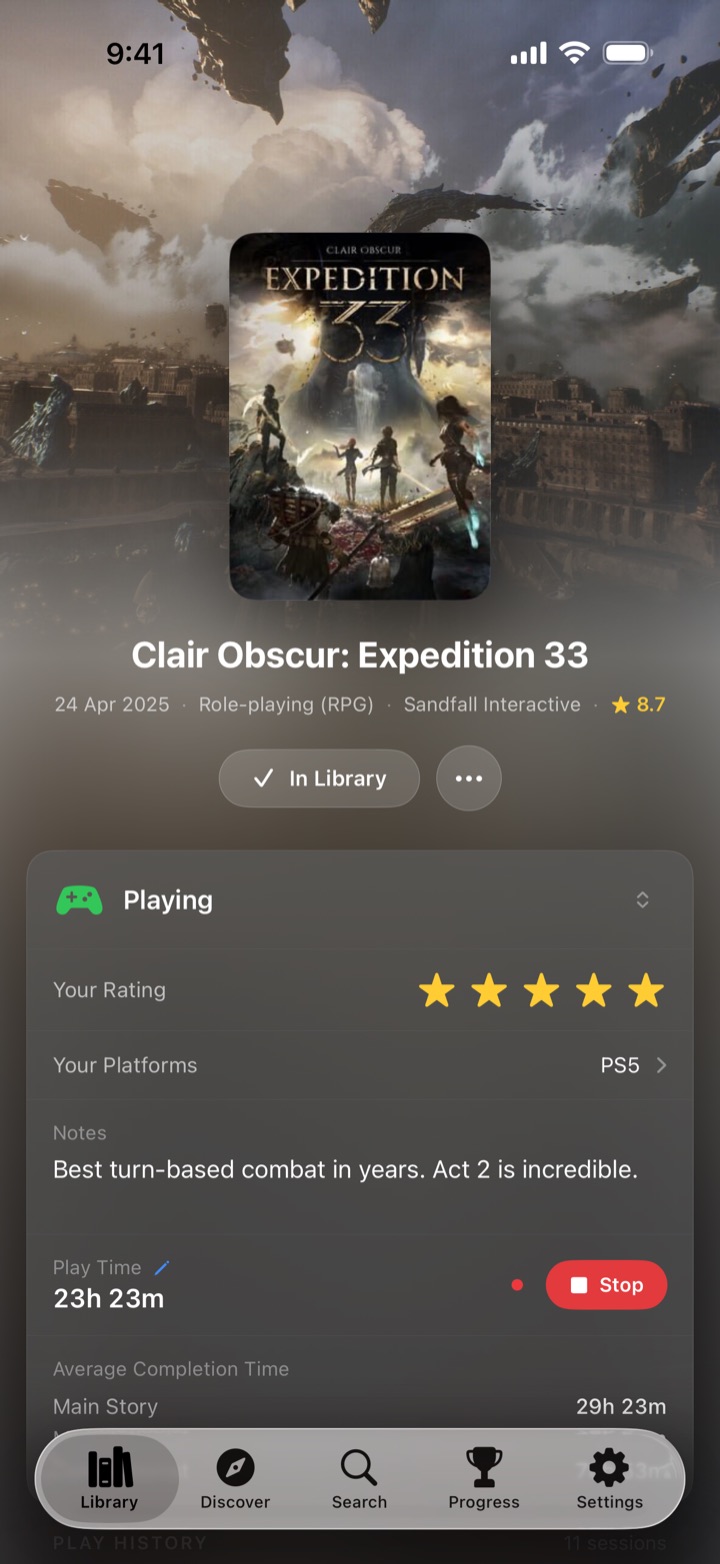
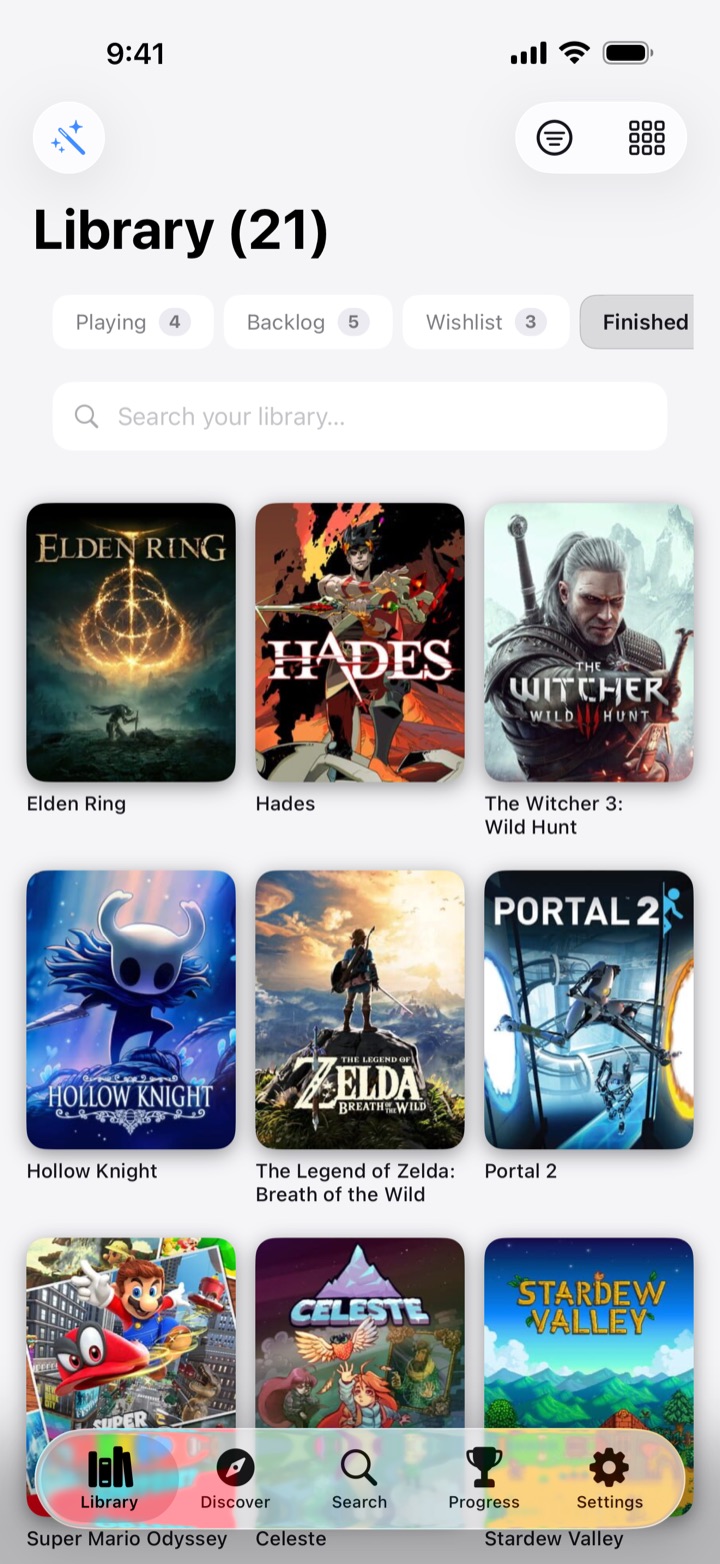
GameShard is a game and backlog tracker for iPhone and iPad. Play Next picks from your own games, a one-tap timer logs every session, Steam playtime syncs by itself, and a forecast tells you when you’ll clear your backlog.
// Try it
Pick a mood and how much time you have. Play Next deals a game from a sample backlog, the same way the app picks from yours.
03 // Your pick

Pick a mood and a time,
then deal.
You should play
Sample backlog; time-to-beat figures are rough. In the app, Play Next picks from your own games.
// What it does
01
[ Free ]
Pick a mood and how much time you have, and get a game from your own backlog with how long it takes to beat.
02
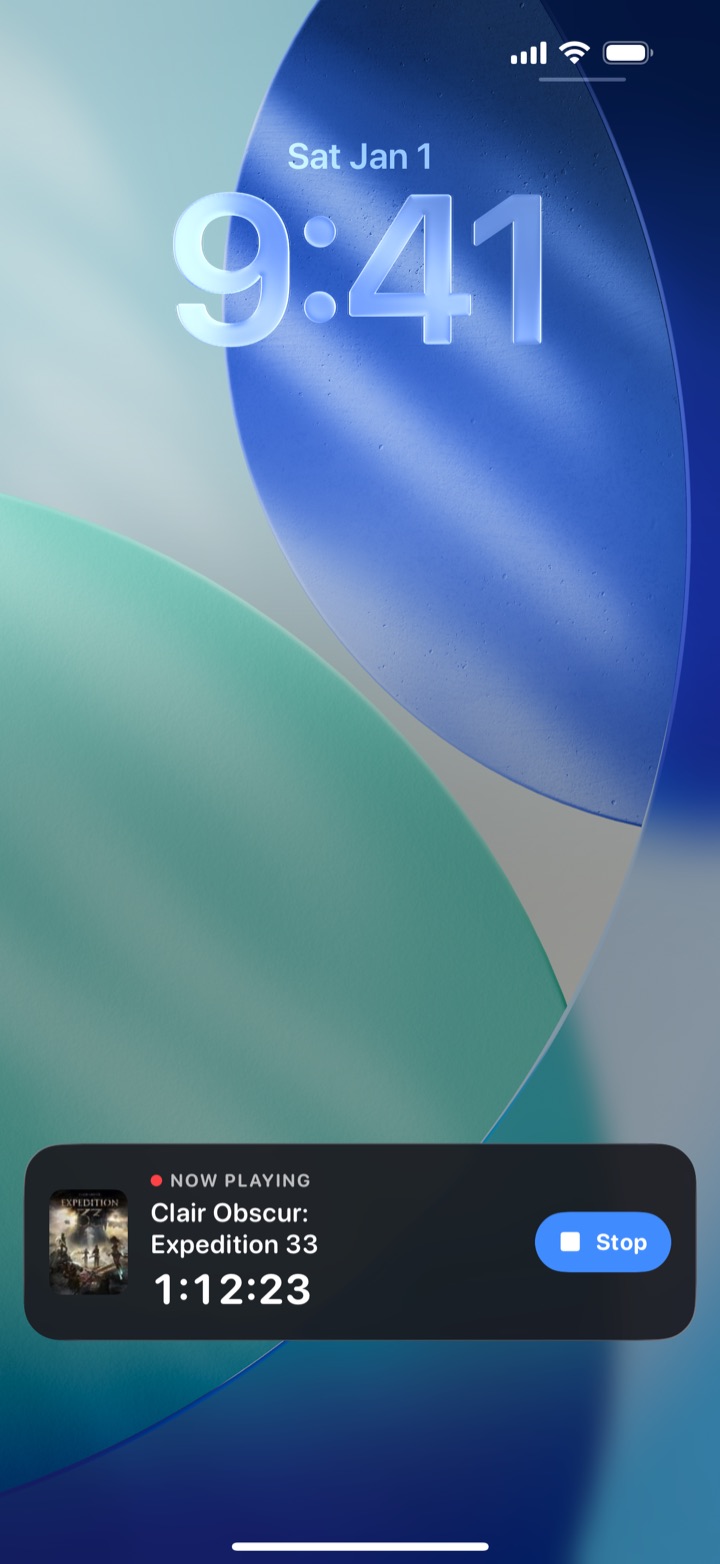
[ Live Activity ]
One tap to start, stop it from the lock screen or the Dynamic Island. Log past sessions by hand.
03
[ Automatic ]
Import your Steam library with real playtime. After that, playtime syncs by itself.
04
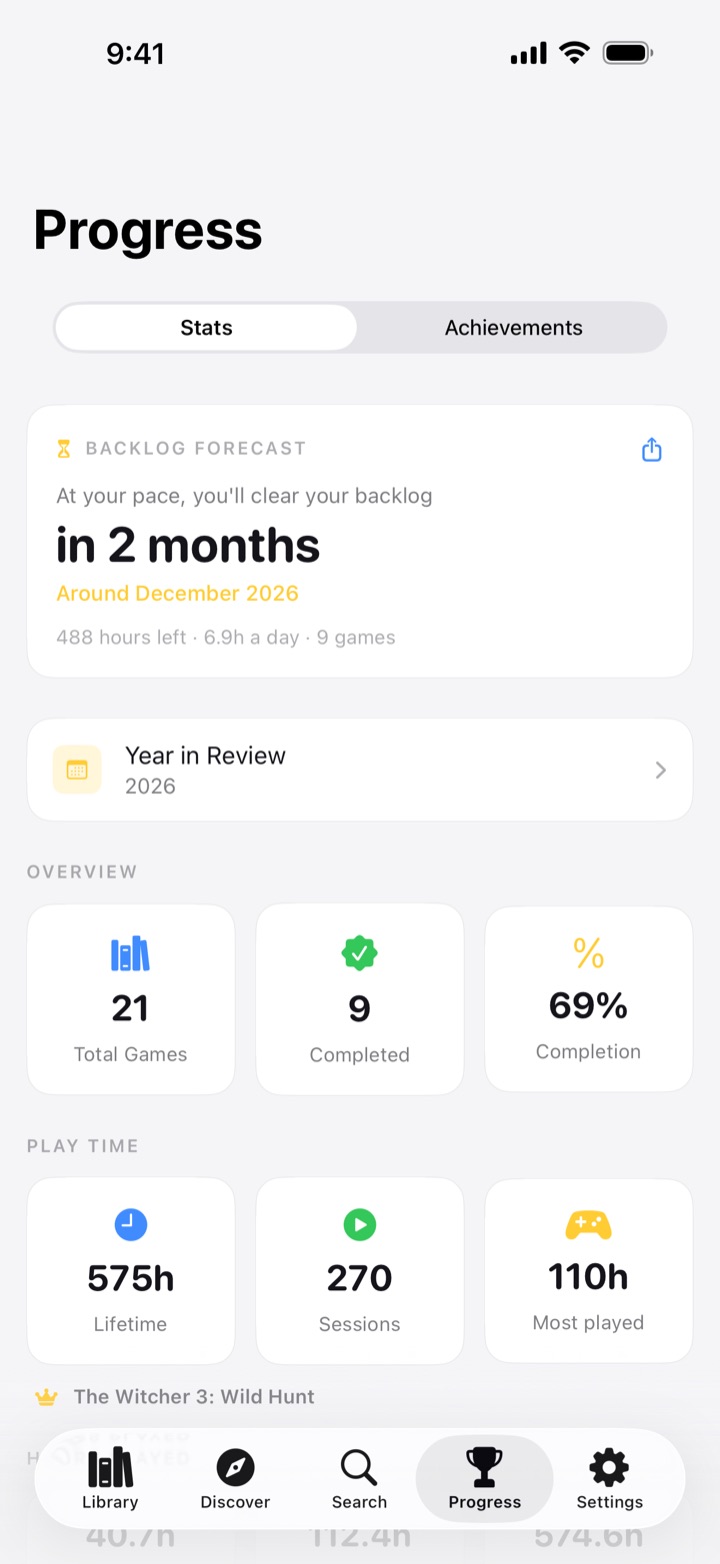
[ At your pace ]
“At your pace, you’ll clear your backlog in 2 years 4 months.” Worked out from the hours you actually play.
05
[ Home + Lock screen ]
A free small widget with your live timer and progress. Medium and large widgets with Premium.
06
[ Every December ]
Your hours, top games, busiest month, longest streak and player type. Swipe through, then share.
// See it
// Get started
01
apps.apple.com/app/id6759448157
Free on iPhone and iPad. No account to create.
02
Settings → Integrations → Connect Steam
Or bring your HowLongToBeat list or a CSV, or tap the popular games you’ve played.
03
Play Next → Let’s go → Stop
Let Play Next pick, start the timer, and watch your hours, streak and forecast add up.
// Privacy
0
accounts to create
0
ads
0
trackers
Your library stays on your phone. Back it up to Files for free, restore it on a new phone, or export it as a spreadsheet. Read the privacy policy
// FAQ
Go to Settings → Integrations → Connect Steam, then import your library. Your Steam profile’s Game Details must be public: in Steam, open Settings → Privacy → Game Details and set it to Public.
Your library lives on your device. Use Settings → Backup → Back Up Library to save it to Files, then Restore from Backup on the new phone.
Yes. Use Settings → Integrations → HowLongToBeat, or Settings → Backup → Import from CSV for any spreadsheet.
Open Settings → Account → Restore Purchases while signed in with the Apple Account you bought it with.
Apple manages the subscription. Open the Settings app on your iPhone, tap your name, then Subscriptions → GameShard.
Titles, artwork, release dates and time-to-beat estimates come from IGDB. Your own play time comes from your sessions and, if you connect it, Steam.
In GameShard, open Settings → About → Report a Bug. The email fills in your app version, iOS version and device. Or email luca@lucamanzoni.com.